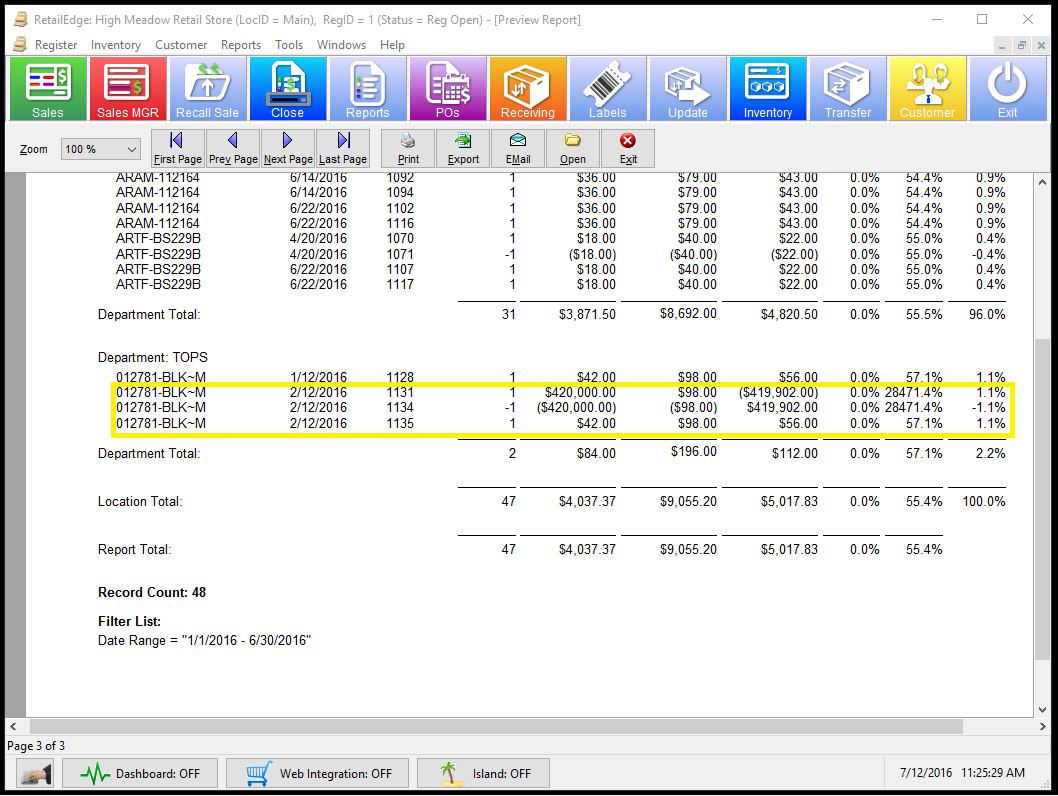

1) First let's look at the Detailed Sales Report and you come across an item with bad cost.
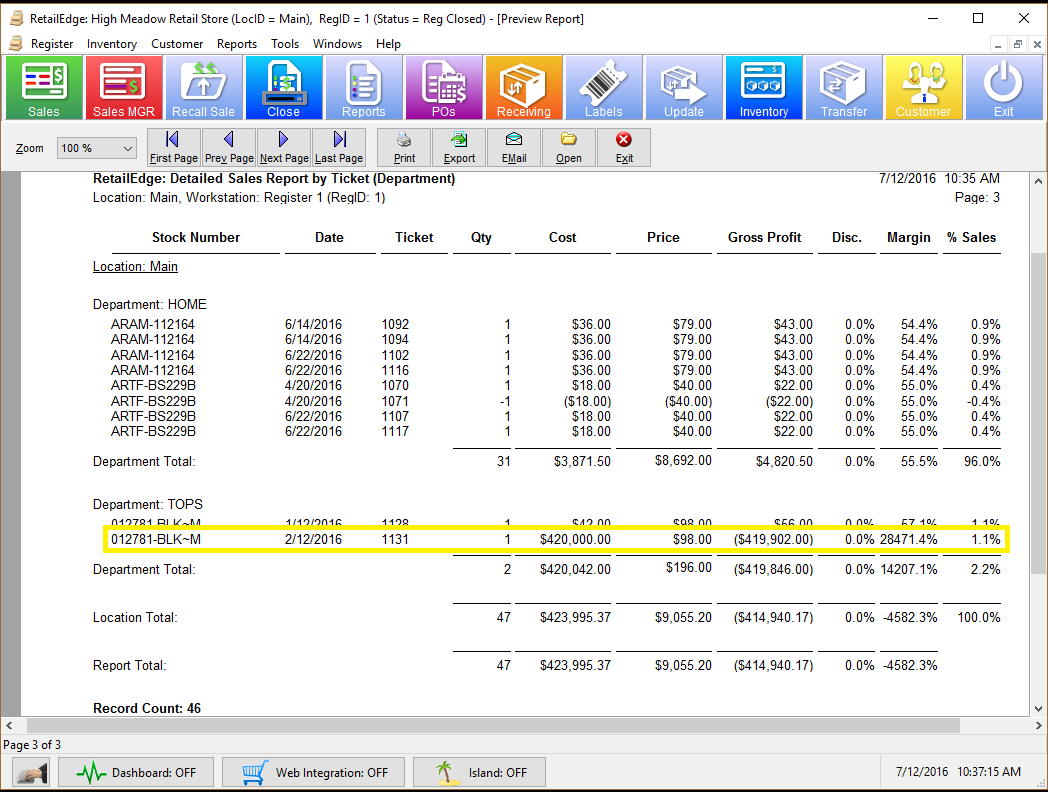
2) Take note of the ticket number, date, stock number, and cost.
3) Go to Inventory Manager and locate the item.
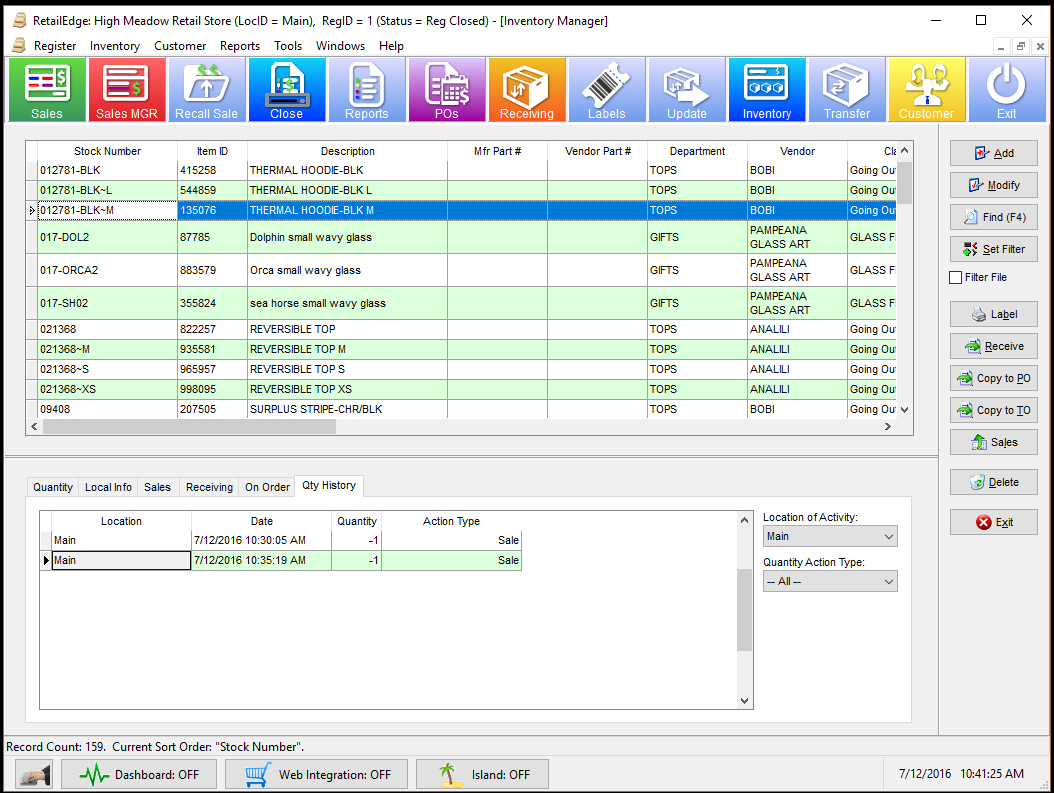
4) Modify the item and verify if the items cost is still bad. If the item still has a bad cost, proceed to the next step. If the items cost is not the “bad” amount noted before, then 1.) take note of the current cost and average cost (if the average cost is not out of whack), and 2.) input the bad cost into the Last cost field and select the Reset Avg Cost button.

5) Go to Sales Manager and find the transaction with the bad cost using the ticket number.

6) Select Copy sale.

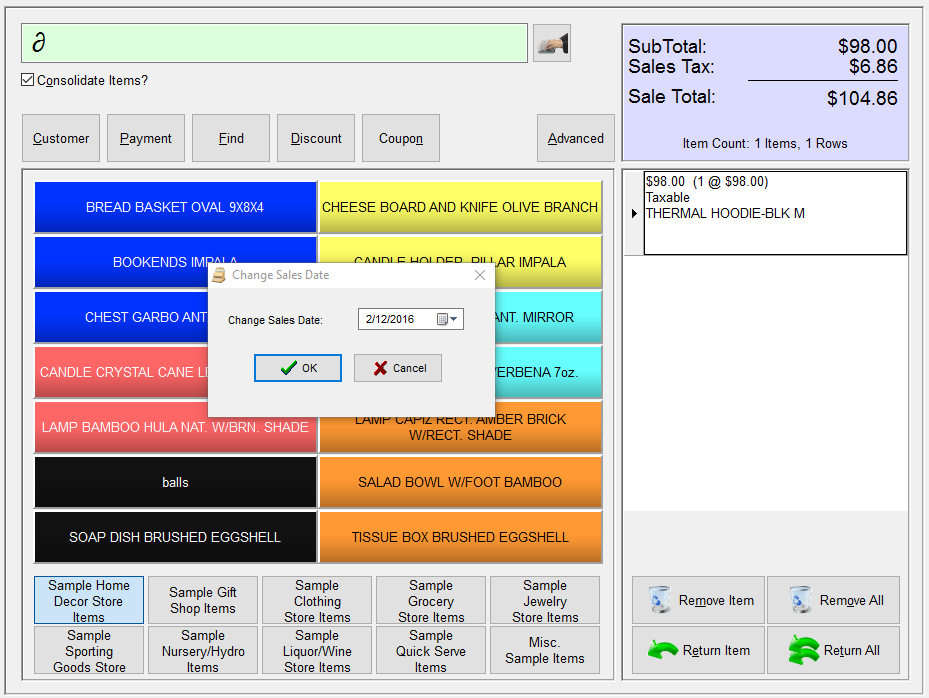
7) Change the Date of the sale to the date of the original transaction by pressing Ctrl Alt D

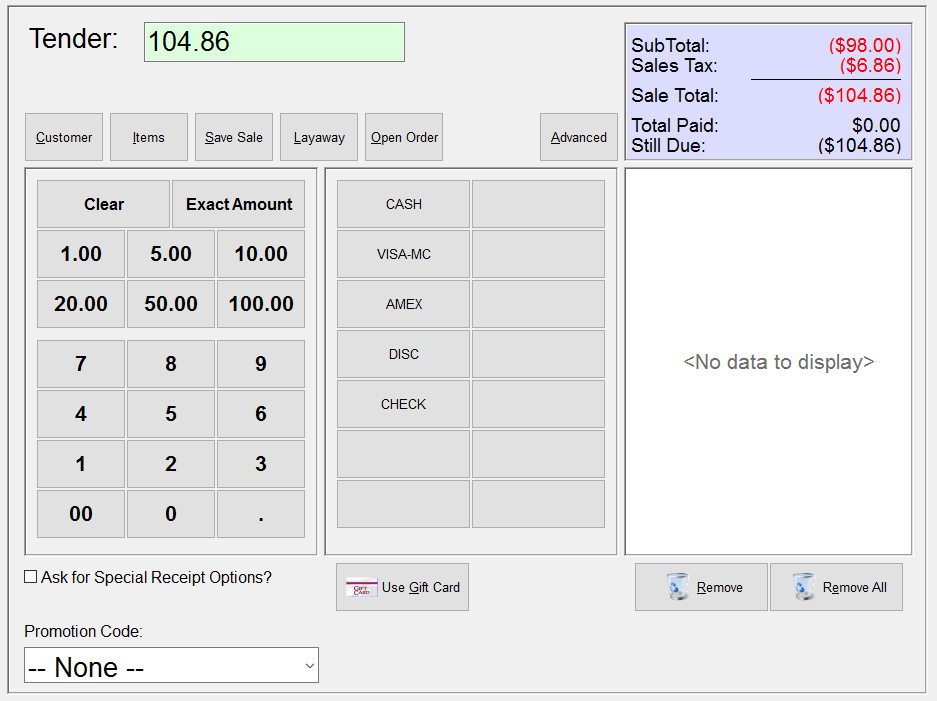
8.) Return the item
9) Now go back to Inventory Manager, locate the item and fix the bad cost and Reset Avg cost.

10) Resell the item using the change date Feature (Ctrl Alt D) again.
11) Check your report to verify that the Item has been corrected. You should see using the Detailed Sales Report a corrective negative transaction and then the item sold under the proper cost.