Do you have a backup plan for when your credit card machine goes down? #
Whether you’re using integrated credit card processing or a standalone payment terminal, outages happen. And when they do, having a secondary way to accept payments at the point of sale is essential to keep sales flowing and your line moving.
We often see businesses turn to options like Venmo or Zelle in these situations. Others keep simple backup devices on hand, like a Square Reader that can handle simple tap or chip transactions. The key is flexibility: Giving your customers ways to pay, even when your primary system is offline.
Just as important as accepting those payments is tracking them. For both legal compliance and business insights, every transaction needs to be recorded properly. That’s where RetailEdge comes in.
By setting up additional payment methods in the Payments screen, you can easily manage and track these alternative payment types right at the POS.
Here’s how to set it up:
- Go to Tools > Payment Methods > Edit Payment Methods
- Click Add in the Payment Methods List
- Select a Location
- Enter a Payment ID (e.g., Venmo, Zelle, Square)
- Pro tip: Create a payment method with a Payment ID beginning with _ (underscore). This will create a blank payment button on the touch sales screen and allow you to space out the payment buttons. See Also: Setting The Order of Payment Methods
- Add a Description
- Leave Process as Credit Card unchecked
- Leave Pop Cash Drawer when Posting Sale unchecked
With just a few quick steps, you’ll be ready for the unexpected- without missing a sale.
Reporting Time #
Let’s say you had to accept some payments via Venmo or Square, and it’s time to get that data out of RetailEdge for your bookkeeper. This is going to be the Payment Methods Report.
- In RetailEdge, click the Reports icon on the top of the screen.
- In the Search bar, type “payment methods” and highlight the payment methods report
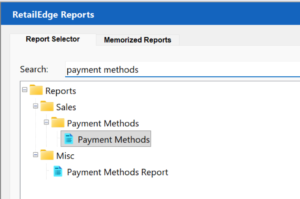
- On the right side of the screen, check the circle for Summary Report
- Filter on your desired date range and click OK.
- Click the Export button and you’re free to save it as whatever file type you want for you or your bookkeeper to have for their records. (This is important since Venmo payments for goods and services over a certain amount should be reported on a 1099-K.)
Don’t forget to memorize this report so you can quickly and easily access it next time you want to run it.


