What is the retailedge.ini file? #
RetailEdge uses an INI file to configure various program settings. On startup, RetailEdge reads this file to determine parameters such as which database to use, screen layouts (including whether windows start maximized), and the criteria for the last inventory or customer queries.
Accessing the retailedge.ini file #
To view or edit this file:
Open RetailEdge, go to Help > About, then press Ctrl-Alt-I.
This opens the file for viewing or editing. While most of the content is managed by RetailEdge and should not be changed, there are several key values you can customize.
Notes:
Semicolons are used to comment out sections, allowing you to enable or disable features as needed.
The file is loaded at program startup, so restart RetailEdge after making changes.
Common Applications #
Receipt and Sales Subtotals #
Do you ever wonder how we create subtotals on our RetailEdge quotes?
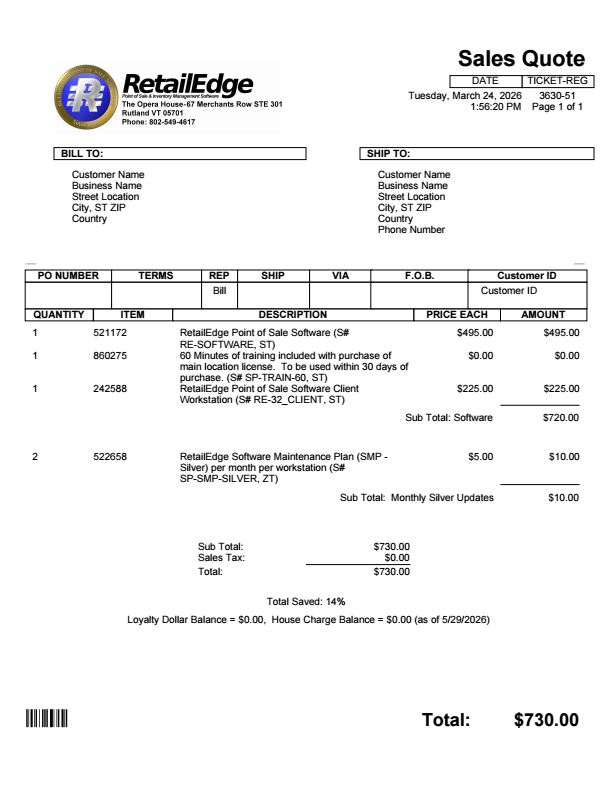 If you generate quotes and want item groupings with subtotals, here are steps and videos to show you how to do it.
Tipping Departments #
With integrated credit card processing, RetailEdge can automatically add tips to sales. You can add departments to these tips for better tracking.
Receipt Language Substitution #
You can create customized receipts in RetailEdge. This is a fairly complex process and it can be much easier to simply change column headers or language differences by modifying the language definition files. You can find out more about this here.
Example of language substitution
For example, to change OPEN ORDER on an open-order receipt to WORK ORDER, update:
Receipt_Tape_Order_Order=OPEN ORDER
to
Receipt_Tape_Order_Order=WORK ORDER


