Here are detailed step by step instructions on how to change text labels on your receipts. In order to make easier to understand, I will pretend we are going to be changing text labels on the page style receipt that refer to Value Added Tax (VAT).
Tell RetailEdge to Use The Language File when Printing a Receipt #
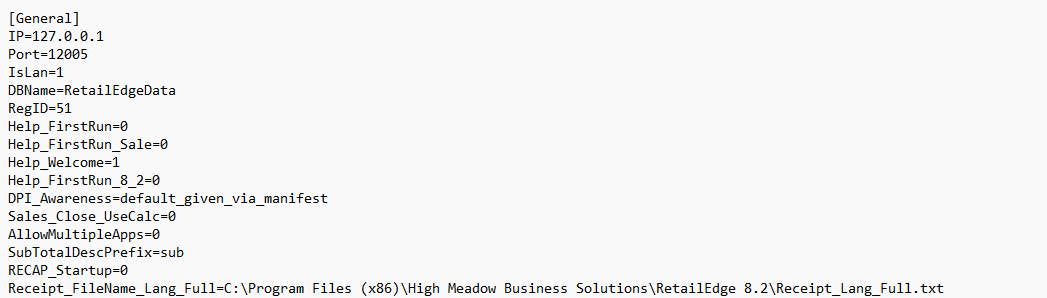
- Open and Edit the RetailEdge INI File. By Default this file is located in: C:\Users\[User Name]\AppData\Local\High Meadow Business Solutions\RetailEdge 8.2. You will need to replace [User Name] with your own user name used on your computer. You can find a list of users by typing in C:\users in Windows Explorer to see what users have been created on your computer and use the one you are logged in as.
- Open this file in Notepad or some other text editor. INI files should be associated with Notepad on your Windows computer and so double clicking it will open the file.
- At the bottom of the [General] section, place one of the two following lines of text depending on whether you want to change your Full Page or Tape Style Receipt.
- Receipt_FileName_Lang_Full=C:\Program Files (x86)\High Meadow Business Solutions\RetailEdge 8.2\Receipt_Lang_Full.txt
- Receipt_FileName_Lang_Tape=C:\Program Files (x86)\High Meadow Business Solutions\RetailEdge 8.2\Receipt_Lang_Tape.txt
- Save the File.
Edit The Text You Want Changed in the Receipt Language File #
-
- Find the Receipt_Lang_Full.txt file (or Receipt_Lang_Tape.txt if you want to modify this file). By default this is in your C:\Program Files (x86)\High Meadow Business Solutions\RetailEdge 8.2 folder.
- Open this File in Notepad or some other text editor. TXT files should be associated with Notepad on your Windows computer and so double clicking it will open the file.
- Scroll down to the text labels you want to change. In this example I want to change the VAT tax language on my receipt, so I will edit the text in the [Vat] section of the file. In this case I want to change every instance of VAT to GCT, so I change the following values in the file.
- Save the File.
[Vat]
Receipt_Full_Vat_TitleInvoice=VAT INVOICE
Receipt_Full_Vat_Total=TOTAL
Receipt_Full_Vat_DetailTax=VAT TAX
Receipt_Full_Vat_TaxTotal=VAT Taxto
[Vat]
Receipt_Full_Vat_TitleInvoice=GCT INVOICE
Receipt_Full_Vat_Total=GCT TOTAL
Receipt_Full_Vat_DetailTax=GCT TAX
Receipt_Full_Vat_TaxTotal=GCT TaxCheck The New Receipt Look #
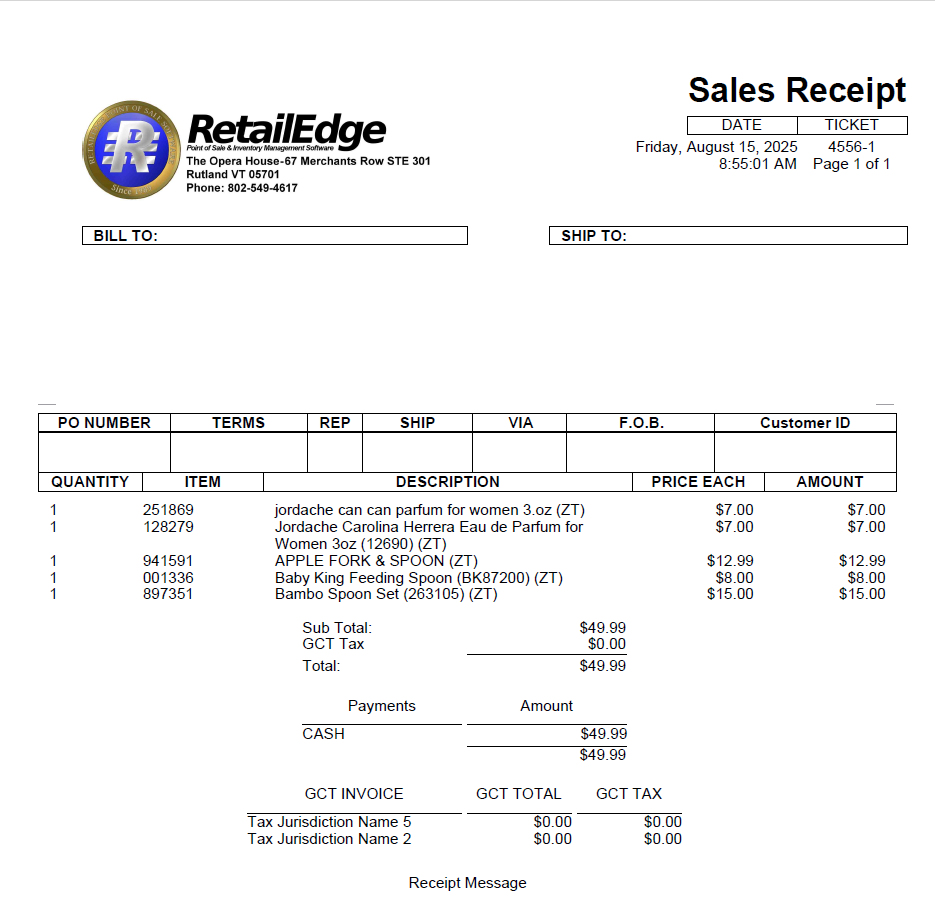
When you print or reprint a receipt in RetailEdge you should see the changes to the receipt shown below. You can see where we changed the values above.

More generalized information on what you can do by changing text labels including language changes can be found here.


