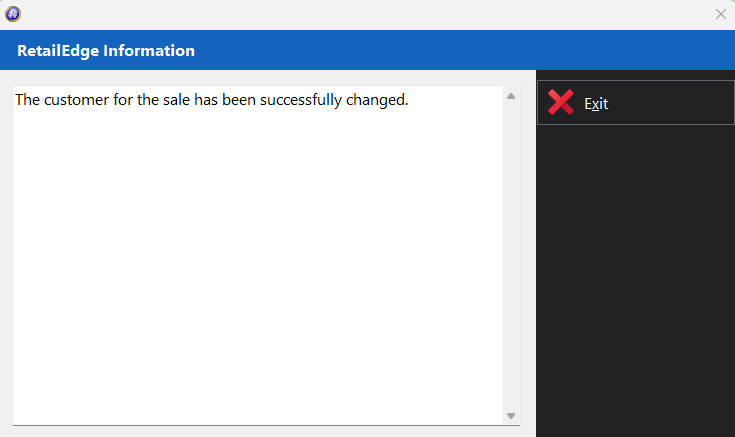
If you need to change a customer or add a customer to a previous transaction you can use the Change Customer Utility in the the RetailEdge Sales Manager.
You will need to have a customer in your Database in order to use this feature, you can learn about Creating Customers here.
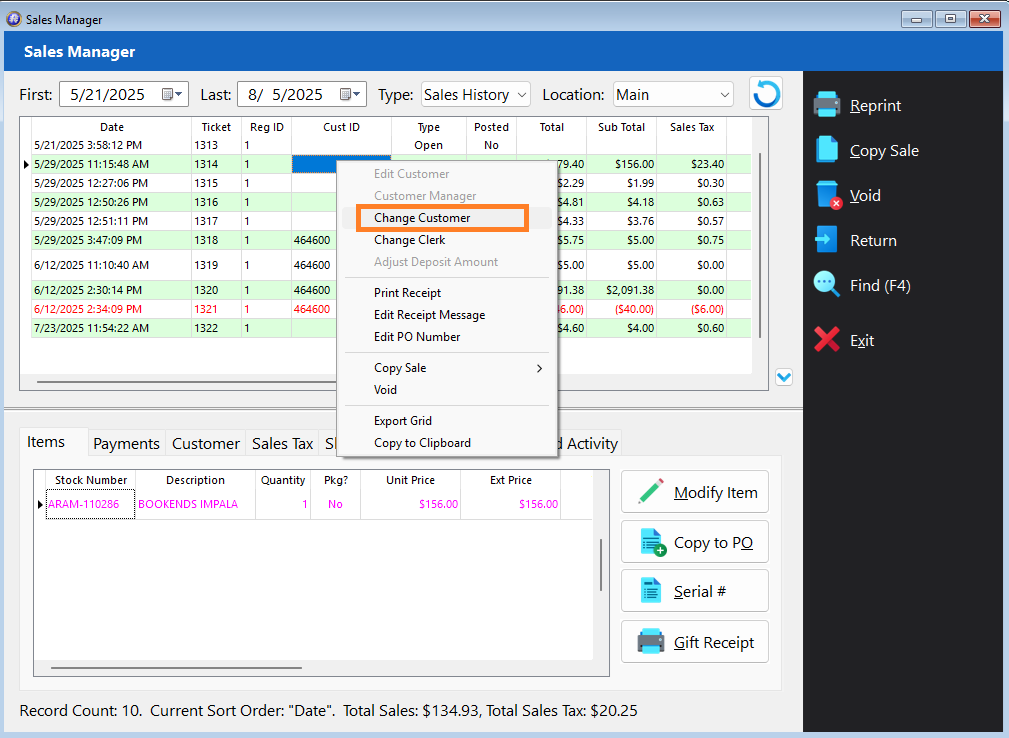
1. Locate the transaction in the RetailEdge Sales Manager.

2. Right Click on the Transaction and Select Change Customer.
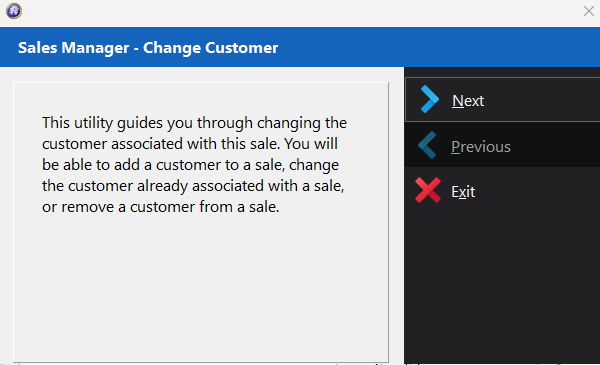
3. On the Sales Manager – Changer Customer Select Next.
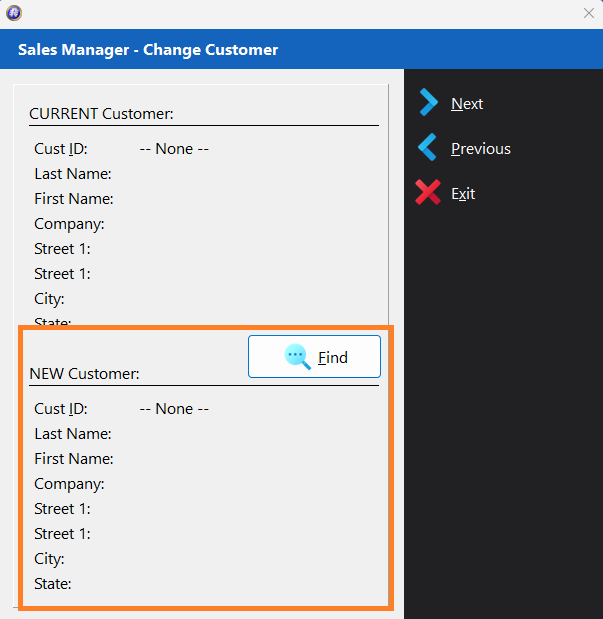
4. In the New Customer Section Select Find.
5. Locate the Customer you would like to add in the Find Customer Window.
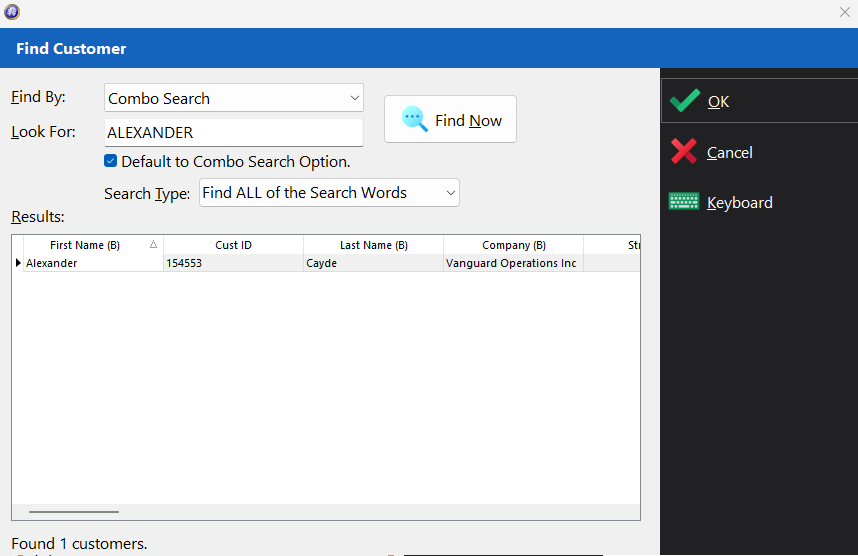
6. Select Next
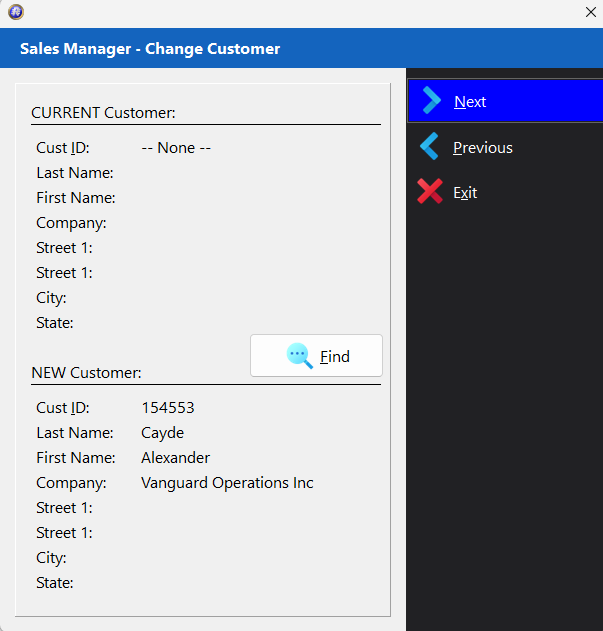
7. Select Run Customer Changer Utility.
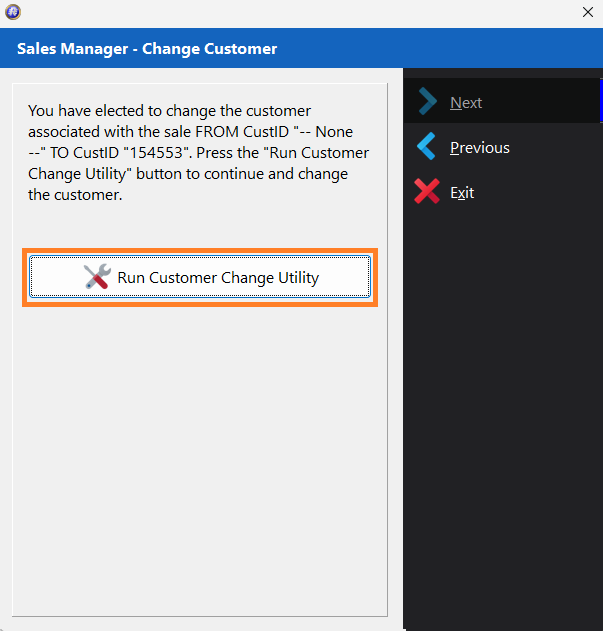
8. Select Yes on the Confirmation Screen if you want to proceed. Please read the contents of the Screen.
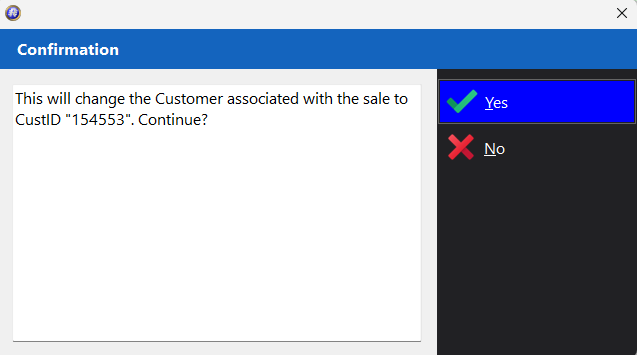
9. Select Yes on the Confirmation Screen if you want to proceed. Please read the contents of the Screen.
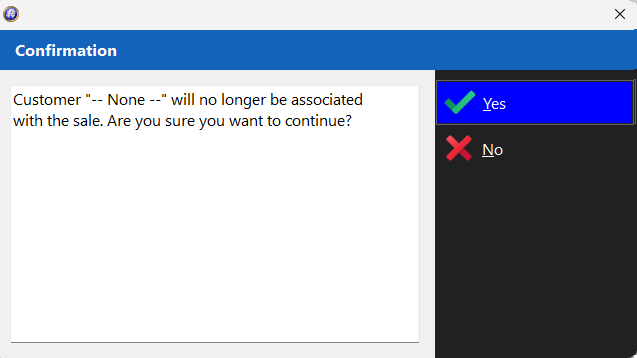
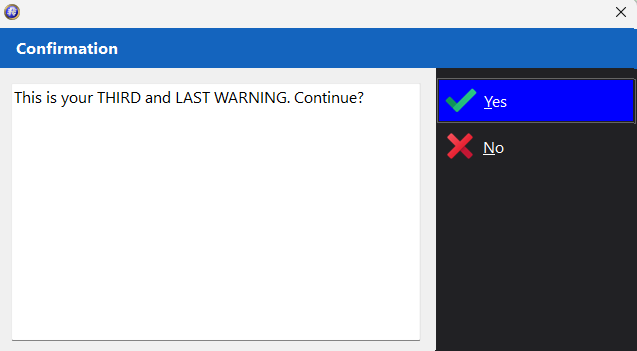
10. Select Yes on the Confirmation Screen if you want to proceed. This is the third and last warning.
11. The Utility will complete and select Exit.