Greetings! This week I wanted to share with you all a lesser known feature added to RetailEdge 8.2.53, the new Return Button.
This feature was requested by many of our users looking for a way to quickly select items from a previous sale to return. This features a screen where you can select specific items and quantities from a ticket. This will also loads the pricing of the items from the original sale, reducing the time it can take to modify the prices of items.
The steps are as follows:
Open The Sales Manager #

Locate the Original Sales Ticket #
Locate the ticket with the items the customer is looking to return.
You can use the Find button or press F4 on your keyboard and type in the ticket or scan the barcode on the bottom of the sales receipt. Then select the Return Button located on the right hand side of the Sales Manager Screen:

Select The Items Being Returned #
On the Return Sale Window, select the items that you would like to return.
Note: If you want to return all items on the sale then select the All button on the Right hand side. (Boxed in Orange)
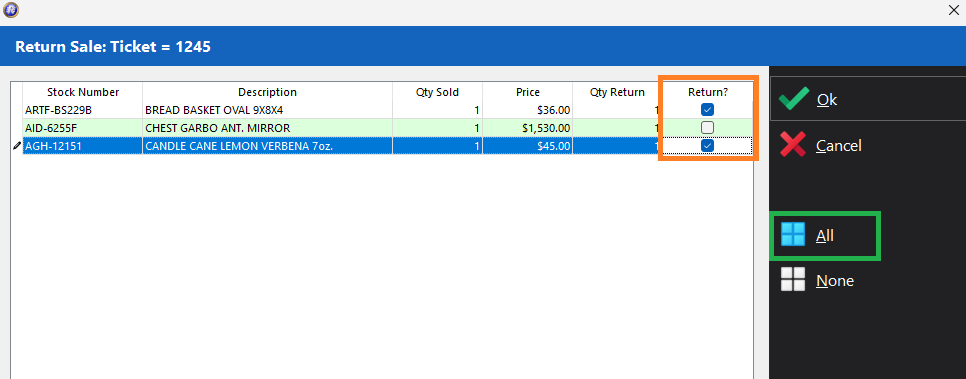
Once you Select the items from the sale that you would like to return Select Ok.

Complete the transaction! #
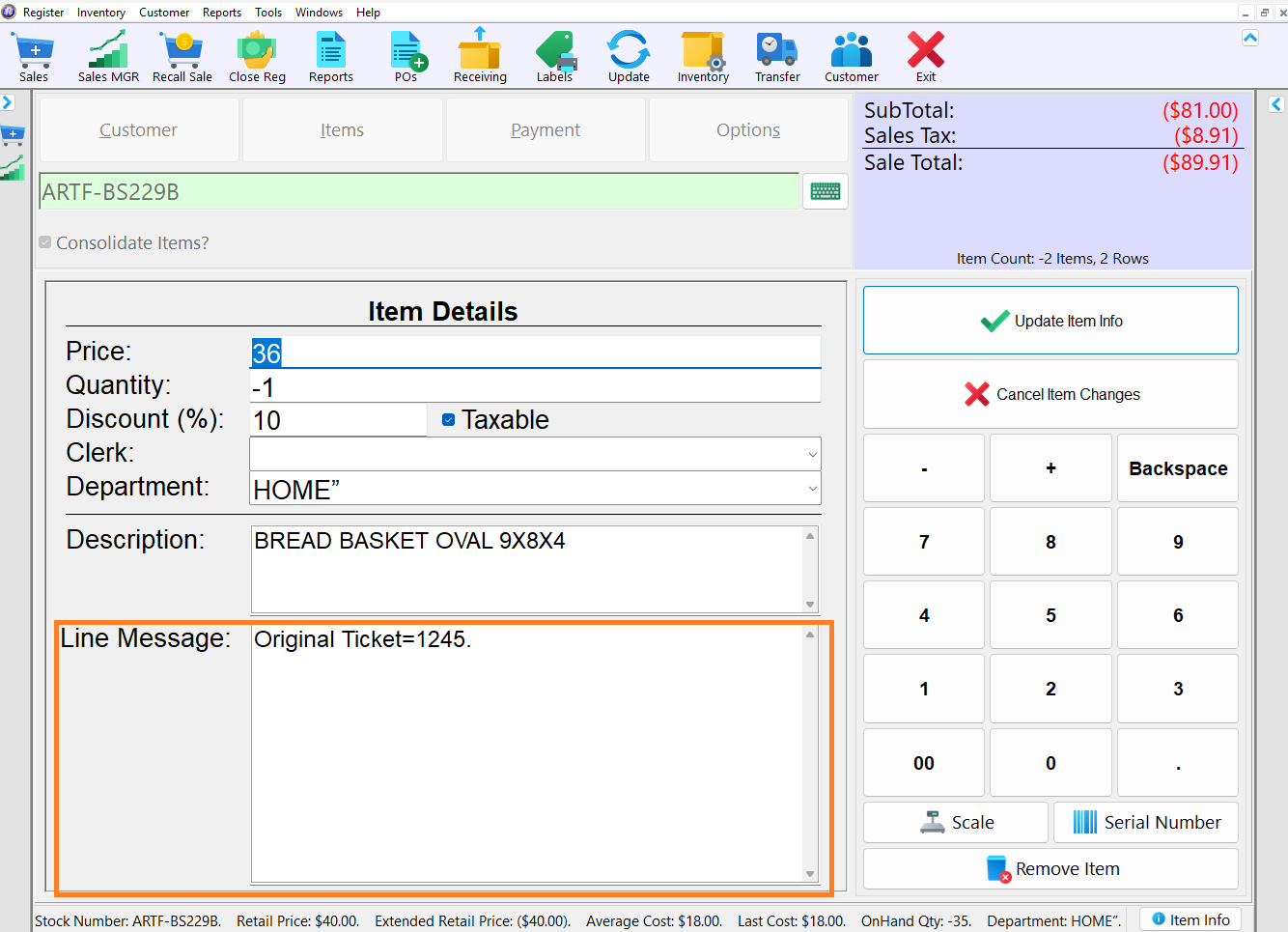
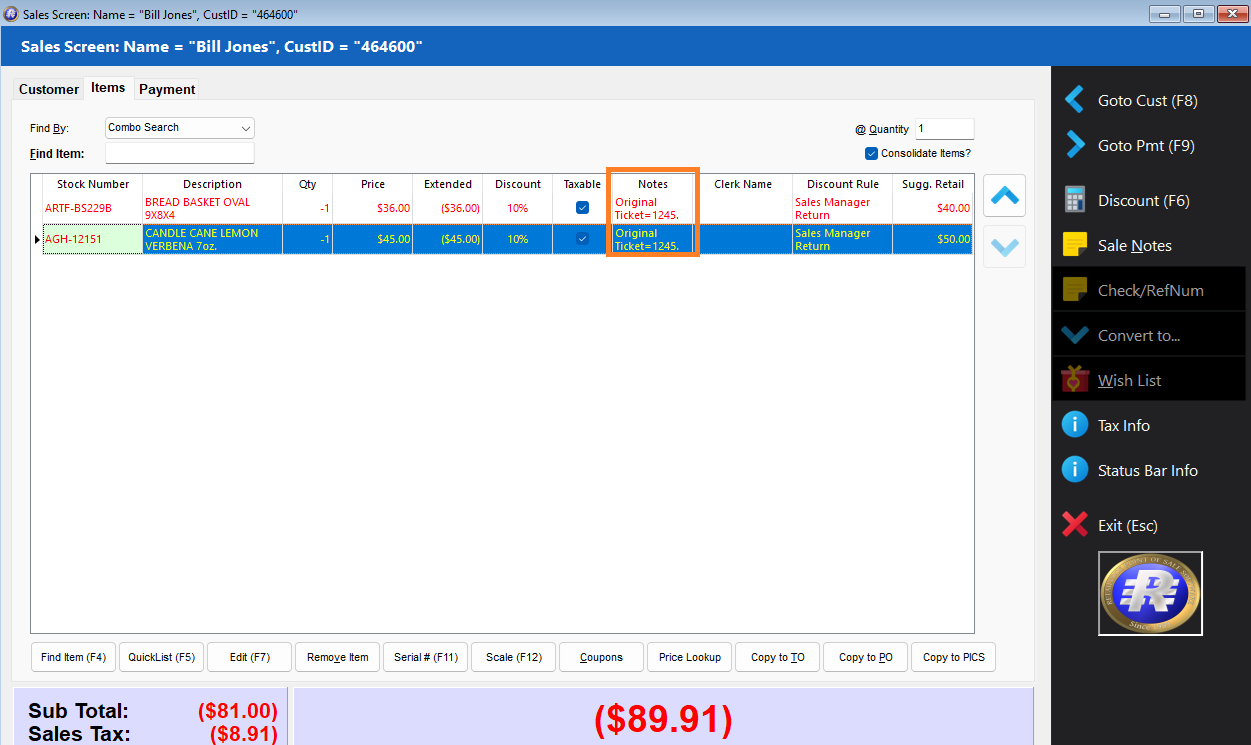
This will open the Sales Screen with the items selected, loaded and ready to return.
Touch Sales Screen #
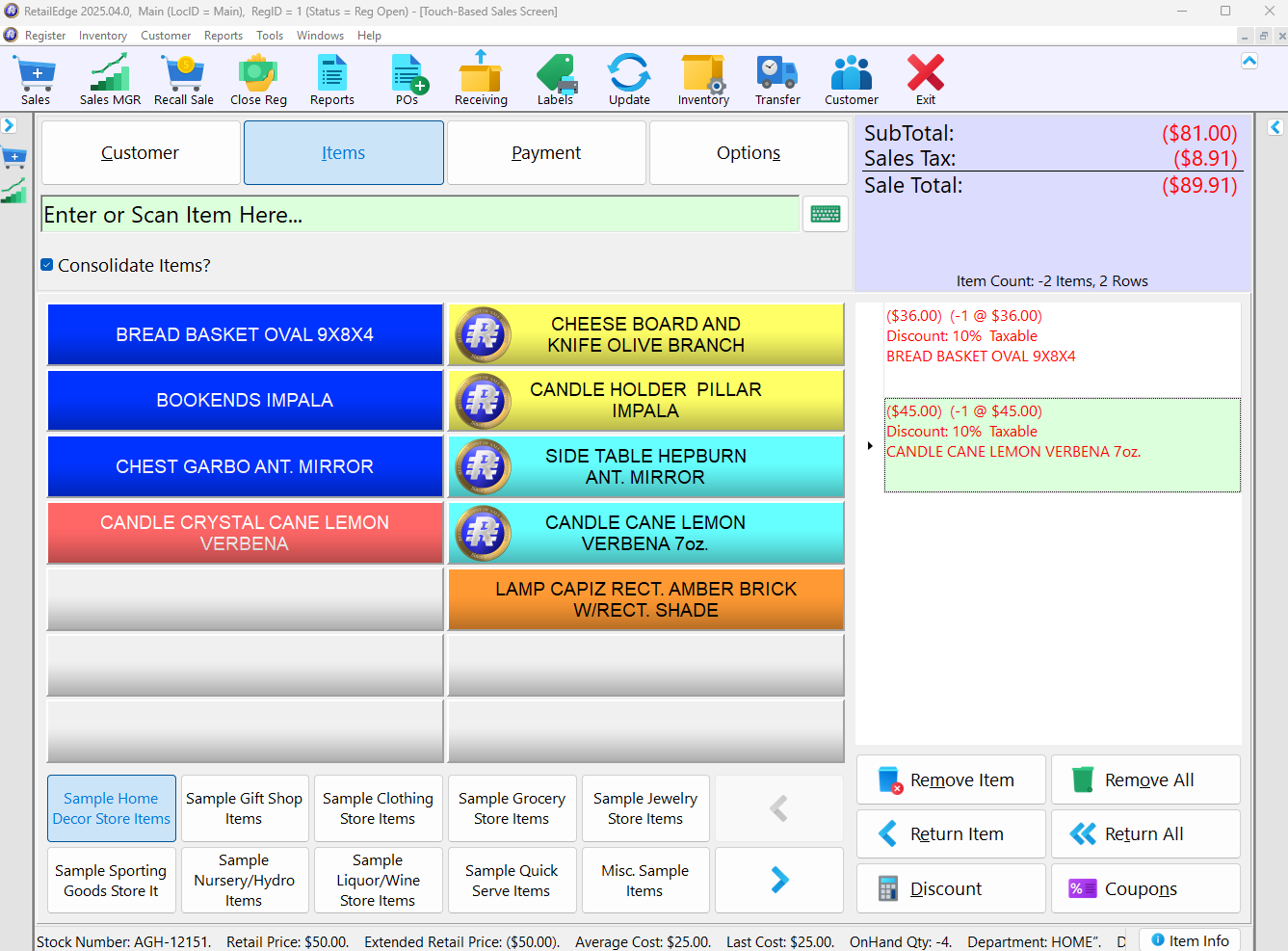
Notice the inclusion of a note on the items referencing the original transaction:
Traditional Sales Screen: #
FAQs #
Q: I am use to the way I process my returns, do I have to use this method now?
A: No, the way you are use to processing returns should work just fine. This is just another method that other users may find easier.
Q: Sometimes I run into issues where I try to return Discount Ruled items, does this address this issue?
A: Yes, When the RetailEdge Programming Department went about crafting this feature they wanted to provide an easier way for clerks to process returns of discounted items.
Q. Can I do a partial return (ex. Bought 3 of the same item and only wants to return 1?)
A. Yes. Just enter the quantity you want to return in the “Qty Return” column.
Q: Can I process a Credit Card Return Without the Customer Present?
A: Yes, as long as a Customer is on the Original Transaction (If they are not, you can create the customer in RetailEdge and add them to the sale using the Change Customer utility When you go to Payments and select your Credit Card payment select Reuse Last Card
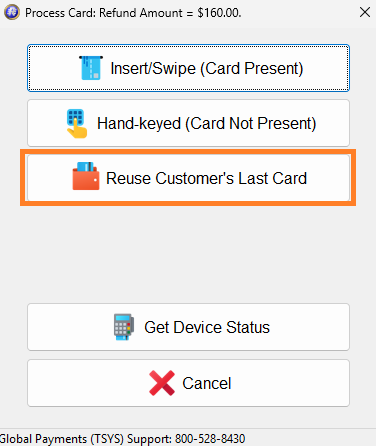
Then Select the Card from the Grid
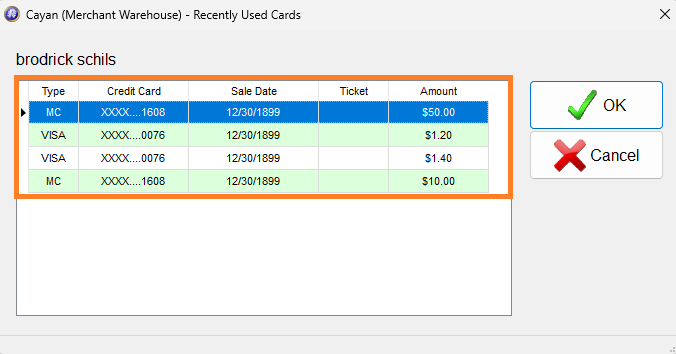
And Proceed with the Return


