Using the Return Button on the Sales Manager #
There are many ways to perform a return in RetailEdge. However the simplest and fastest is from the Sales Manager using the Return Button.
The Return Button allows you to select specific items and quantities from a ticket and will also load the pricing of those items from the original sale, reducing the time it can take to modify the prices of items.
The steps are as follows:
Open the Sales Manager #

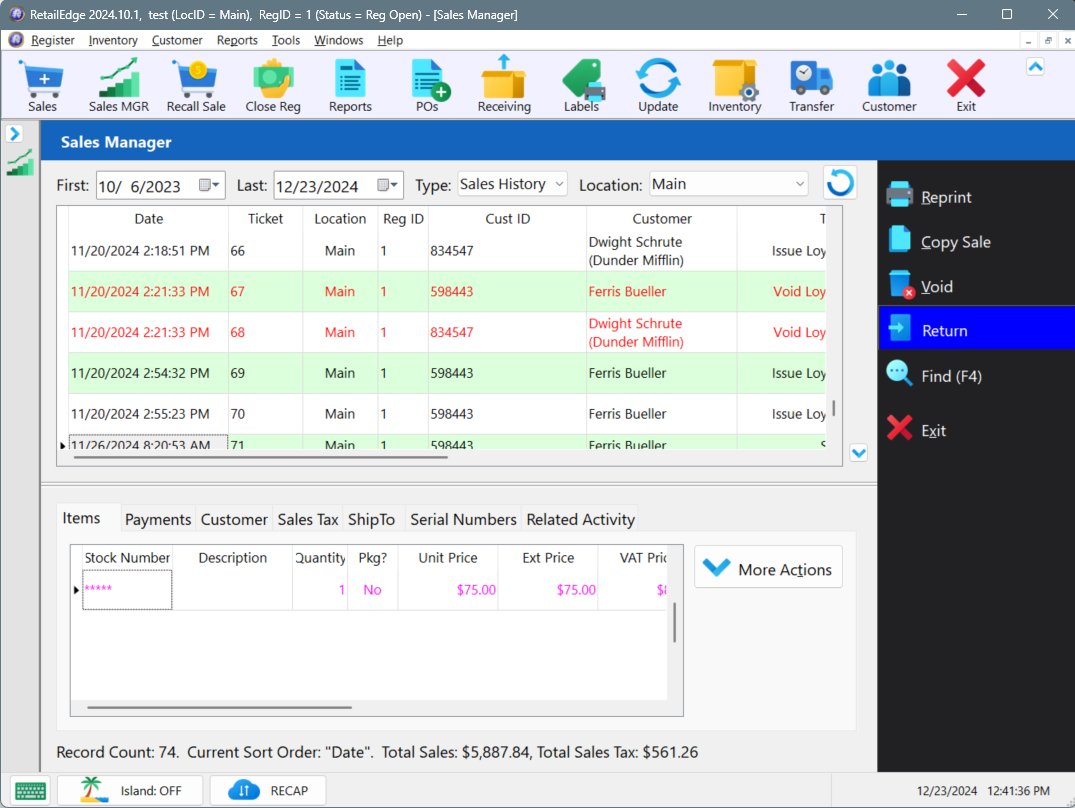
Locate the ticket #
Locate the ticket with the items the customer is looking to return. (You can use the Find button or press F4 on your keyboard and type in the ticket or scan the barcode on the bottom of the sales receipt)
Press the Return Button #
Then press the Return Button located on the right-hand side of the Sales Manager Screen.
Select the Items to Return #
On the Return Sale Window, select the items that you would like to return. Note: If you want to return all items on the sale then select the All button on the right-hand side.
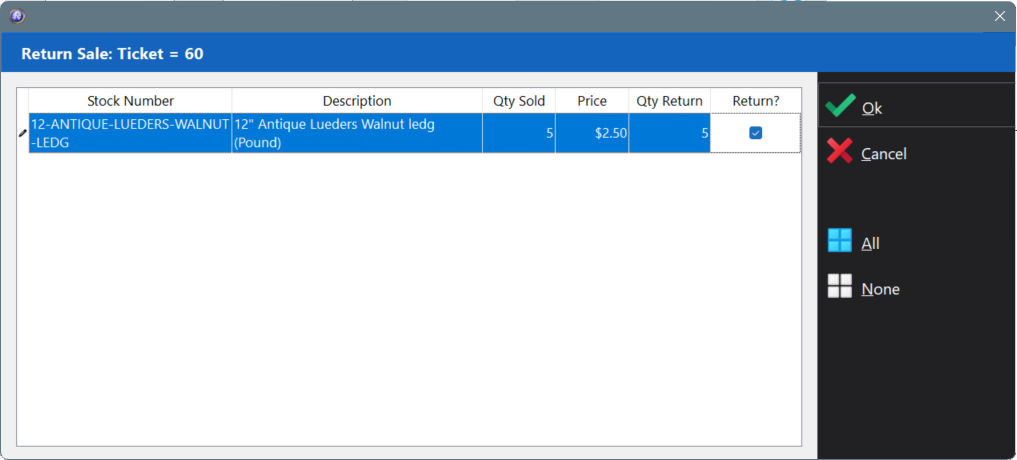
Once you Select the items from the sale that you would like to return.
Press Ok #
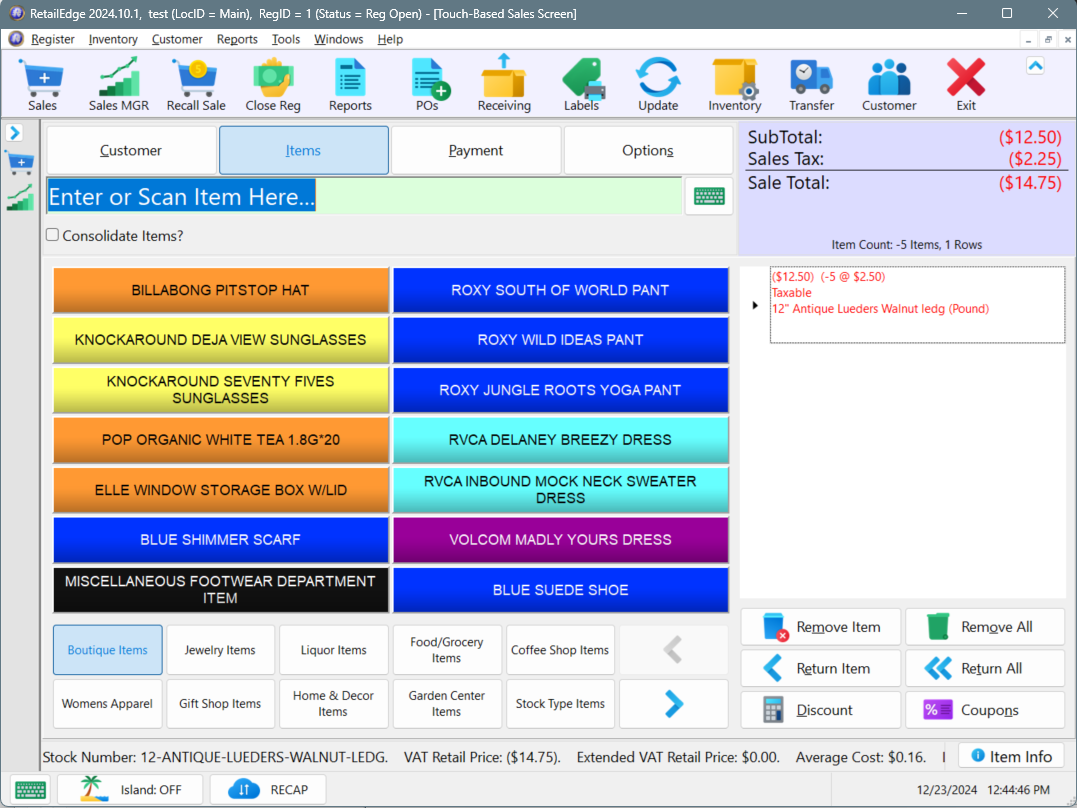
This will open the Sales Screen with the items selected, loaded and ready to return.
 A note will automatically be added to the items referencing the original transaction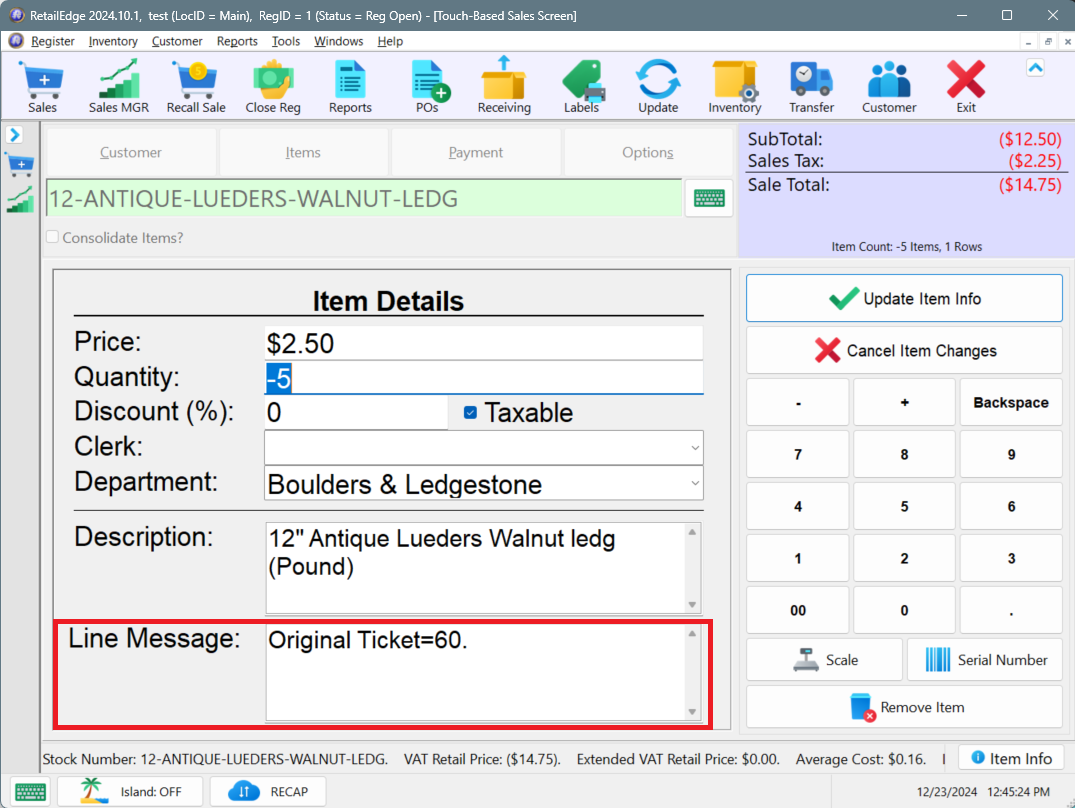
Complete the Transaction #
Then complete the transaction as you normally would. If a customer is associated with the sale, you can issue them a Store Credit. Or return to a Gift Card.
Advantages #
The advantages of using this method for returns are:
- When returning an item with a discount rule, the item is returned with the same discount and cost.
- You can do a partial return of the item, quickly (i.e., Bought 3 of the same item and only wants to return 1).


